
Modules
Welcome
Greet new members in a channel and by DM, see them off when they leave, thank boosters, and send a welcome image you lay out yourself.
Welcome greets people as they join your server and sees them off when they leave. Each of its messages is set up on its own:
- the join message, posted in a channel you pick when someone joins;
- the leave message, posted in a channel when someone leaves;
- the direct message, sent to each new member.
- the boost message, posted in a channel when a member boosts the server (see The boost message).
All of them work the same way. Each is text in Fluxer's markdown plus up to five embeds (cards with an author, title, text, fields, pictures and a footer), with placeholders like {user} and {membercount.ordinal} filled in for each member. Each can carry the welcome image, a picture with the member's avatar and name that you lay out on the dashboard (see The welcome image). The image goes under the message or inside one of its embeds. Start from a ready-made format and make it your own.
The Welcome module is off by default, and nothing is sent until it's on and a message has a channel (the DM needs none). It's free.
Set it up step by step#
- Make a channel for greetings, like #welcome, and give Dexy View Channel, Send Messages, Embed Links and Attach Files there.
- Open the dashboard, pick your server and turn on Welcome in the sidebar (or with the switch at the top of its page).
- Open Welcome ▸ Join message. Under Where, pick your channel.
- Under Format, pick a starting design, such as Welcome + start here.
- Under Message and Embeds, make it yours. The formatting buttons add bold, headings, spoilers, timestamps and more. A placeholder chip goes where your cursor is. The Preview on the right shows the message as Fluxer will, with you as the new member.
- Under Image, choose Where the image goes: off, below the message, or inside an embed.
- Press Save changes in the bar at the bottom.
- Press Send a test: Dexy posts the message about you in the channel, exactly as a new member would get it.
The Overview page shows every message at a glance, whether Dexy can post where they go, and how many DMs couldn't be delivered. Test as on any page picks a member the preview and the tests are about (see Testing as another member).
What members get#
A real join message from the demo server in the Welcome + start here format. The first embed shows the welcome image (the Neon template) and the second links the server's channels:

Dexy BOT Today at 9:41 PM
Welcome @Starling!
 Starling just joined
Welcome to Dexy Lounge!
You're our 1,380th member.
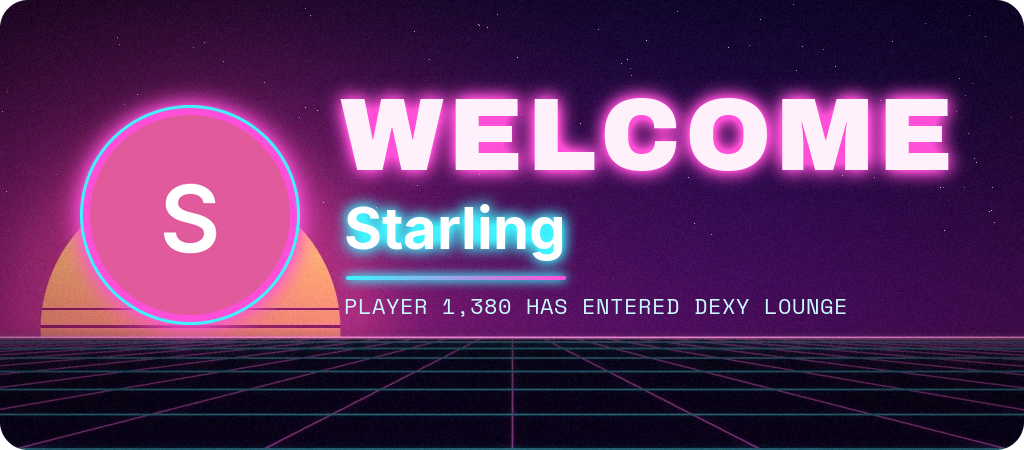
Start here
📜 Rules
Read #rules first.
🎭 Roles
Pick yours in #roles.
💬 Chat
Say hi in #general.
 Dexy LoungeToday at 9:41 PM
The leave message in the Goodbye + where we are format, with its own image (the Farewell template):
Dexy BOT Today at 9:41 PM
 ember
ember
Goodbye, Ember
Thanks for being part of Dexy Lounge.
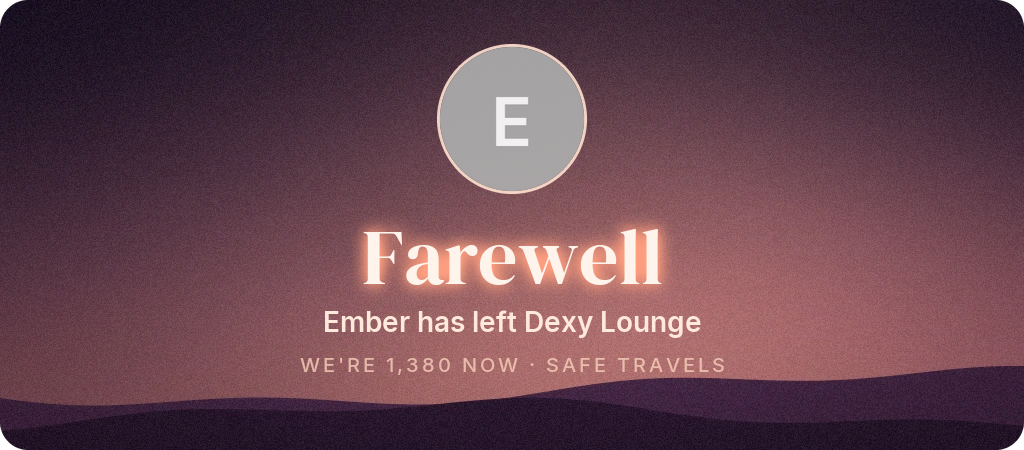
Where we are now
Members
1,380
Username
ember
Account age
11 years
Dexy LoungeToday at 9:41 PM
And the DM the new member gets:
Dexy BOT Today at 9:41 PM
Welcome to Dexy Lounge, Starling! Read #rules before you post.
Placeholders#
Placeholders are words in braces that Dexy fills in for each member. They work in the text, every part of the embed, and the welcome image's text.
| Placeholder | What it shows | Example |
|---|---|---|
{user} | The member, mentioned (on the image: @their name) | @Starling |
{username} | Their username | starling |
{displayname} | The name they show in the server | Starling |
{user.id} | Their user ID | 1460000000000000077 |
{server} | The server's name | Dexy Lounge |
{membercount} | How many members the server has now | 1,391 |
{membercount.ordinal} | The same as a position | 1,391st |
{account.age} | How old their account is | 2 years |
{created_at} | The day their account was made | Mar 4, 2024 |
{date} | The day they joined or left (the member card's “member since”) | Oct 21, 2026 |
{timestamp} | When they joined or left, as a Unix time for timestamps: <t:{timestamp}:R> | 1792619700 |
{created_at.timestamp} | When their account was made, as a Unix time: <t:{created_at.timestamp}:D> | 1709510400 |
The server's boosts, for the boost message or any other:
| Placeholder | What it shows | Example |
|---|---|---|
{boosts} | How many boosts the server has | 12 |
{boost.level} | The server's boost level, 0 to 3 | 2 |
There are no boost placeholders on Fluxer: Fluxer has no server boosting. {boosts} typed into a message stays as typed, and Dexy points it out.
- Anything else in braces is sent exactly as typed. The dashboard marks it under the field, and the commands say so when you save.
- Names are sent as plain text: a username with
*or_can't change your formatting, and@everyonein a name never pings. - An embed's author and footer are plain text in Fluxer, so
{user}reads "@name" there, as on the image. - When the filled-in placeholders make a part longer than Fluxer allows (a long server name in a title, say), Dexy shortens that part with "…" rather than not posting. It never cuts in the middle of a mention or a timestamp.
d!welcome placeholders lists them in chat:
Live in Discord
 Welcome placeholders
Live in Fluxer
Formats#
A format is a ready-made design for one message. Picking it replaces the message's text, embeds and where the image goes. Its channel, auto-delete, ping and silent settings stay. Each format has a join, a leave (goodbye wording) and a DM version.
Each has a boost version too, with thank-you wording, for the boost message.
| Format | Name in chat | Join and DM | Leave |
|---|---|---|---|
| Text only | text | One line of markdown text | The same, saying goodbye |
| Text and image | text-image | A line of text, the welcome image under it | A goodbye line, the goodbye image under it |
| Embed | embed | The server as the author, a title, the member's avatar and the time | Who left, a goodbye, their avatar and the time |
| Image in an embed | embed-image | An embed with the welcome image as its big picture | The same, with the goodbye image |
| Image only | image | Just the welcome image | Just the goodbye image |
| Welcome + start here | two-embeds | A welcome embed with the image, then one linking your rules, roles and chat channels | Goodbye + where we are: a goodbye embed with the image, then members, username and account age |
Links to #rules, #roles and #chat in a format point at your own channels: the first text channel whose name has "rules", "roles" or "general" / "chat" / "lounge" in it (📜・rules counts). When there's none, the format says #rules as plain text for you to change.
On the dashboard, the Format list on each message's page shows a small sketch of each design and marks the one in use. Picking one changes the draft only: save to keep it, or press Reset.
Sent as: text, embed or Components V2#
Fluxer messages go out as their text and embeds; Fluxer has no Components V2.
Each message has a Sent as choice on the dashboard (Welcome ▸ a message ▸ Sent as). All three use the same text and embeds you write, so switching never loses anything:
| Sent as | What members see |
|---|---|
| Text | Just the message text, in Discord markdown. Your embeds stay saved, they're just not sent. |
| Embed | The text with the embeds under it. The default. |
| Components V2 | One card: the text on top, each embed as a block with its colour as the accent bar, the author as a small line, the title as a heading, the thumbnail beside the text, the image inside the block and the footer small at the bottom. |
A Components V2 message can't be turned back into a classic one after it's posted, so a change applies to the next welcome, not to ones already in the channel. The preview shows each type as members will see it.
Pick Components V2 and the text and embed editors make way for a Layout builder, which works like Discord's own Components V2 builders:
| Part | What it is |
|---|---|
| Container | A card with a coloured bar on its left (pick the accent colour, or none), which can hide behind a spoiler. The other parts go inside it. |
| Section | One to three lines of text with a picture or a link button on the right. |
| Text | Discord markdown: headings, bold, lists, links, mentions, timestamps. |
| Separator | A line, or just space, small or large. |
| Media gallery | One to ten pictures in a grid. |
| Link buttons | Up to five buttons that open a link. |
Add component adds a part; open one to change it, and use the arrows to move it, the copy button to duplicate it or the bin to remove it. Drag a row by its handle (⋮⋮, with a mouse or a finger) to move it anywhere it can go: into or out of a container, between sections, galleries or button rows; a line shows where it lands, and dropping it on an Add … puts it at the end of that list. Click a part in the preview to open it in the list. The counters show Discord's limits: 40 components and 4,000 characters of text in one message. Templates start you off (the first one is your text and embeds laid out as a card), and JSON copies the layout or takes one pasted from another Components V2 builder. Until you change the layout, Dexy lays out your text and embeds as a card.
Texts take the same placeholders as the message. A picture can be {user.avatar}, {server.icon} or {image}, the welcome image; with the image on and no {image} in the layout, it goes at the end.
Embeds#
A message can have up to five embeds under its text, in the order you set. Fluxer allows ten, but Dexy keeps it to five so a welcome stays readable in a busy channel. On each message's page, Embeds lists them. Open one to edit it, and use the arrows to reorder it, the copy button to duplicate it or the bin to remove it. Each embed has:
| Part | What it is | Markdown |
|---|---|---|
| Colour | The bar on the left, or No colour for Fluxer's grey | — |
| Author | A small line on top, with an icon (the member's avatar, the server's icon or a link) and an optional link on the name | Plain text |
| Title | Bold, with an optional link | One line: bold, italic, code, links |
| Text | The embed's main text | Everything but tables |
| Fields | Name and value pairs; side by side ones share a row, up to three across | Names: one line. Values: everything but tables |
| Thumbnail | A small picture top right: the member's avatar, the server's icon or a link | — |
| Image | A big picture under the text: the welcome image or a link | — |
| Footer | Small grey text at the bottom, with an optional icon | Plain text |
| Time | When the message was sent, after the footer, in each reader's time zone | — |
Every text takes placeholders. Links (on the title and the author, and pictures) must start with https:// or http://. Counters under each text, and the total across the embeds, follow the limits.
On a phone the preview comes first, then the editor:
Embeds as JSON#
Embeds can be exported and imported as JSON, in the shape embed builders use, so a design can be kept, shared between servers or made in a builder you like:
- Export writes the message's text and every embed. The pictures Dexy fills in are written as
{avatar}(the member's avatar),{server.icon}(the server's icon) andattachment://welcome.png(the welcome image, as an embed's big picture); links stay links.coloris a number, as builders write it;timestamp: truemeans "when it was sent". - Import reads that JSON back: one embed object, a list of embeds, or
{"embeds": [...]}with an optionalcontent(the text, which then replaces the message's).coloras a number,0x…or#rrggbb;icon_url,thumbnail.urlandimage.urlas links or the markers above; an ISOtimestampmeans "when it was sent";type: richand the proxy fields a chat API adds are ignored. Placeholders work in every text. The embeds replace the message's. One embed can carryattachment://welcome.png: the image placement switches to that embed.
Everything is checked against the limits first (ten embeds in the JSON at most, five kept, 256 characters in a title, 25 fields, 6,000 characters across the embeds, and so on): what's wrong is said with the exact place, like embed 2 title, and nothing changes until it fits.
On the dashboard, Import JSON and Export JSON are under the embed list on each message's page. Import takes a paste or a .json file and shows what the bot refused right under the box; the result lands in the draft, so save to keep it. Export shows the JSON to copy, or downloads it as a file.
Where the image goes#
Each message chooses, under Image:
- Off: no image.
- Below the message: the image is a file under the text and embeds.
- In an embed: the image is the big picture of the embed you pick. Dexy sends it as a file and points the embed at it (
attachment://welcome.png). Fluxer then shows it inside the embed only, not a second time below.
The join message and the DM use the welcome image; the leave message has its own goodbye image. In a join flood, when a channel has had its 10 images for the minute, messages go out without one. An embed whose only content was the image is left out then.
Text formatting#
Welcome texts use Fluxer's markdown, the same as when you write a message yourself. The buttons over the text boxes put it in for you: select some text and press one. Everything below works in the message's text. Embed titles, texts and fields take what the Embeds table says.
| Write | To get |
|---|---|
**bold** | bold |
*italic* or _italic_ | italic |
__underline__ | underlined text |
~~strikethrough~~ | struck-out text |
||spoiler|| | hidden until clicked |
# Big, ## Smaller, ### Smaller still, #### Smallest | headings (at the start of a line) |
-# small print | a small grey line |
> quote | a quoted line; >>> quotes everything after it |
- item or 1. item | lists (indent by two spaces to nest them) |
`code` | code |
```js … ``` | a code block, coloured for its language |
[text](https://example.com) | a link with its own text |
<#123…>, <@123…>, <@&123…> | a channel, member or role mention (members and roles aren't pinged: only the member is, with Ping the member on) |
<:name:123…> | a custom emoji |
<t:{timestamp}:R> | a timestamp: see below |
> [!TIP] then > text | a coloured tip box (also NOTE, IMPORTANT, WARNING and CAUTION) |
a table with | a | b | rows | a table (in the message's text only, not in embeds) |
Timestamps#
<t:UNIX:STYLE> shows a moment in each reader's own time zone and language. {timestamp} is when the member joined or left, and {created_at.timestamp} is when their account was made. The clock button puts one in.
| Style | Shows | Example |
|---|---|---|
R | Relative | 2 minutes ago |
t | Short time | 9:41 PM |
T | Long time | 9:41:30 PM |
d | Short date | 10/21/2026 |
D | Long date | October 21, 2026 |
f (or none) | Date and time | October 21, 2026 9:41 PM |
F | Day, date and time | Wednesday, October 21, 2026 9:41 PM |
s | Short date and time | 10/21/2026 9:41 PM |
S | Short date and time with seconds | 10/21/2026 9:41:30 PM |
Limits#
Dexy checks these when you save, counting characters the way Fluxer does: an emoji like 🎉 counts as two.
| What | At most |
|---|---|
| The message's text | 4,000 characters (what Fluxer allows a bot) |
| Embeds in a message | 5 (Fluxer allows 10) |
| An embed's title / author | 256 characters each |
| An embed's text | 4,096 characters |
| Fields in an embed | 25 |
| A field's name / value | 256 / 1,024 characters |
| A footer | 2,048 characters |
| All the embeds' texts together | 6,000 characters (Dexy's limit, to keep welcomes readable) |
| A link | 2,048 characters, https:// or http:// |
Silent messages#
Send silently sends a message as a Fluxer silent message. It shows in the channel (or the DM) as usual, but nobody gets a push notification or a sound for it, the member included. It suits a busy welcome channel. It's off by default for all three messages. In chat: d!welcome silent on (add leave or dm for those messages).
The join message#
- Ping the member: on by default,
{user}in the text notifies them. Off, the mention shows without a notification. A welcome message never pings anyone else, whatever its text says. - Delete after: the message deletes itself after up to an hour, to keep a busy channel tidy. Dexy keeps the pending deletes in its database, so a restart doesn't lose them: a message whose time came while Dexy was restarting is deleted as soon as it's back.
- Embeds and Image: see Embeds and Where the image goes.
The leave message#
The leave message works exactly like the join message: markdown text with the formatting buttons, up to five embeds with every part, the image below it or inside an embed, the formats (with goodbye wording) and the live preview. It posts in its own channel. Fluxer only says who left, so Dexy uses what it saw of them before: their name and avatar. Invite placeholders read “unknown” here. Its image has its own layout, the Farewell template at first.
The direct message#
The DM goes to each new member alongside the join message, with the same text, embeds, image placement and formats as the others. Channel mentions in it still link to your server. Members who don't accept DMs from the server simply don't get it: Dexy moves on quietly and counts it, and the Overview shows how many couldn't be delivered.
The boost message#
The boost message is posted in a channel you pick when a member boosts the server. It has everything the join message has: formatted text, up to five embeds, the formats (with thank-you wording: Thanks + where we are puts the boost count, level and member count in a second embed), the welcome image below it or inside an embed, silent sending and auto-delete. It doesn't ping anyone. Its default text is "{user} just boosted the server! 💎 We're at {boosts} boosts.", and the boost placeholders {boosts} and {boost.level} work in it and in every other message.
Discord reports a boost twice (the member's update and a system message), so Dexy announces each member's boost once. A member boosting again later is announced again.
On the dashboard it's Welcome ▸ Boost message, the same page as the others, with a test button and Test as.
Fluxer has no server boosting, so there is no boost message on Fluxer: no commands, no page on the dashboard, and {boosts} isn't a placeholder. It exists for Dexy's Discord servers only. Everything else on this page is the same on both.
Testing as another member#
Send a test posts a message about you, where it goes. To see what a particular member got, or would get, test as them: the message is filled in with their name, avatar, display name, account age, join position and the rest, exactly as it would have read for them. The DM test still comes to you, never to them.
- On the dashboard, Test as beside the preview (each message's page) or above the message list (Overview) takes a member's name. The preview switches to them too, and the test button sends about them. Clear it to be yourself again.
- In chat, name the member after the message:
d!welcome test join @Luna,d!welcome test leave @Luna,d!welcome test dm @Luna(the DM comes to you, as Luna would get it).d!welcome test @Lunais the join message.
Bots#
Bots that join or leave get no message, unless you turn Skip bots off on the Overview (or d!welcome bots on).
Busy moments#
When many people join at once (a raid, or a big invite going out), Dexy keeps the channel readable and stays within Fluxer's limits:
- a channel gets at most 10 welcome images a minute; after that the messages go out without one;
- a channel gets at most 30 welcome messages a minute; the rest are skipped and counted on the Overview;
- at most 30 DMs a minute go out per server.
Checking your setup#
d!diag and the dashboard's setup check look at the join and leave channels while Welcome is on: Dexy needs View Channel, Send Messages, Embed Links and Attach Files there. The Welcome Overview shows the same, plus how many DMs couldn't be delivered and the last problem posting.
Live in Discord
Live in Fluxer
Commands#
| Command | What it does | Needs |
|---|---|---|
| welcome | Show how new members are welcomed: the join, leave and DM messages, their images and channels.bots · channel · delete · dm · embed · format · image · leave · message · ping · placeholders · silent · test | Manage Server, or a role with Settings |
Full details for each: Welcome command reference.
Fine-tuning the image (moving and resizing its layers, fonts, the background) and editing embeds part by part are done on the dashboard. The commands switch things on or off, pick templates and formats, and move embeds in and out as JSON.
On Discord there are the boost message's commands too: d!welcome boost, d!welcome boost channel, d!welcome boost message, d!welcome boost embed, d!welcome boost image and d!welcome boost delete, each like the leave message's.
Who can set it up#
Welcome's settings are server settings: people who can manage Dexy here (see Permissions) and roles with the settings role permission. Every change, from chat or the dashboard, is in the audit log under Welcome.