
Start here
Getting started
Add Dexy to your Fluxer server, check its permissions with d!diag, learn the prefix and log in to the dashboard.
This page takes you from adding Dexy to a server to your first stats card, in about five minutes. Follow the steps in order; each one shows what you should see.
Add Dexy to your server#
- Open the invite page and pick your server. You need permission to add bots there (usually Manage Server).
- Keep the permissions the invite asks for. You can change them later in your server's role settings, but parts of Dexy stop working without them.
- In any channel, type
d!diag. Dexy checks its permissions and the channels it can see, and tells you what's missing:
Live in Discord

 Setup check
Live in Fluxer
- Fix anything it lists, then run
d!diagagain until it's happy.
Dexy starts counting from the moment it joins. Stats from before that aren't there, except message counts, which an admin can import (see Stats).
The permissions Dexy uses#
d!diag and the setup check on the dashboard's Overview page look at these server-wide permissions. The first six are needed for Dexy to work at all; the rest turn on particular features.
| Permission | What it's for | Needed? |
|---|---|---|
| View Channels | Seeing channels. Only channels Dexy can see are tracked. | Yes |
| Send Messages | Answering commands. | Yes |
| Embed Links | Dexy's replies are embeds. | Yes |
| Attach Files | Charts are sent as images. | Yes |
| Add Reactions | The ⏰ 🔄 📋 controls under stats cards. | Yes |
| Read Message History | Replying to commands. | Yes |
| Manage Server | Invite tracking: seeing which invite each member used. | For invite stats |
| Manage Channels | Making and renaming counter channels, and noticing new or deleted invites right away. | For counters |
| Manage Roles | Locking counter channels and giving activity roles. | For counters and activity roles |
| Manage Messages | Removing your reaction after you press a control. | Optional |
| Use External Emojis | Dexy's own icons. Plain emojis are used without it. | Optional |
Moderation, auto-mod, logging, welcome, auto roles and reaction roles need more, such as Ban Members to ban, Manage Webhooks to post event logs, View Audit Log to say who did something, Attach Files to send welcome images or Manage Roles to hand out roles. While those modules are on, d!diag and the setup check look at their permissions too, and at the channels Dexy posts in for them. Their guides list what each feature needs, and the permissions page has the full picture.
Log in to the dashboard#
The dashboard is the easiest way to set Dexy up. Everything below can also be done with commands.
- Go to the dashboard and choose Log in with Discord or Log in with Fluxer, for where your server is. Dexy only reads your name, avatar and server list. More about logging in.
- Find your server on the home page. Servers with Dexy that you manage are under Keeping watch: press Open. Servers whose stats are open to you are under Stats you can view; servers without Dexy are under Without Dexy, with Add Dexy.
- Press Manage on your server. You land on its Overview.
- Look at the Setup check panel. It's the same check as
d!diag: problems first, with what to do about each one.
- Under Modules, switch on the modules you want and switch off the ones you don't. A module that's off keeps its data; it just stops answering and working until you turn it on again.
Set your timezone#
Days, "today" and the dates on charts follow the server's timezone. The default is UTC, so set yours first.
- In the sidebar, open Stats ▸ Settings.
- Under Time range, click Timezone and start typing a city or region, like "London" or "Kolkata".
- Pick it from the list. Your timezone at the top is the one your browser uses.
- Press Save changes in the bar at the bottom.
The prefix#
Every command starts with the prefix, d! by default:
d!help
d!server
d!help
d!server
Capitals don't matter, so D!help works too. Mentioning Dexy always works, whatever the prefix: @Dexy help. Mention Dexy with nothing else and it tells you the prefix in this server.
To change it on the dashboard:
- Open Manage ▸ General.
- Under Commands, type the new Prefix. Switch off Prefix commands if you only want Dexy to answer mentions.
- Press Save changes.
- A prefix can be up to 10 characters, without spaces or backticks.
- A prefix that ends in a letter or number, like
pp, needs a space before the command:pp stats. That way ordinary words such as "ppl" never trigger Dexy. d!settings prefix offturns the prefix off, so only mentions work. That's handy when another bot already uses the same prefix.d!settings prefix onbrings it back.
Try your first commands#
Now see what Dexy can show you. Each of these works in any channel where commands are allowed.
d!servershows the server overview: messages, voice time, top members and channels, and a chart.
Live in Discord
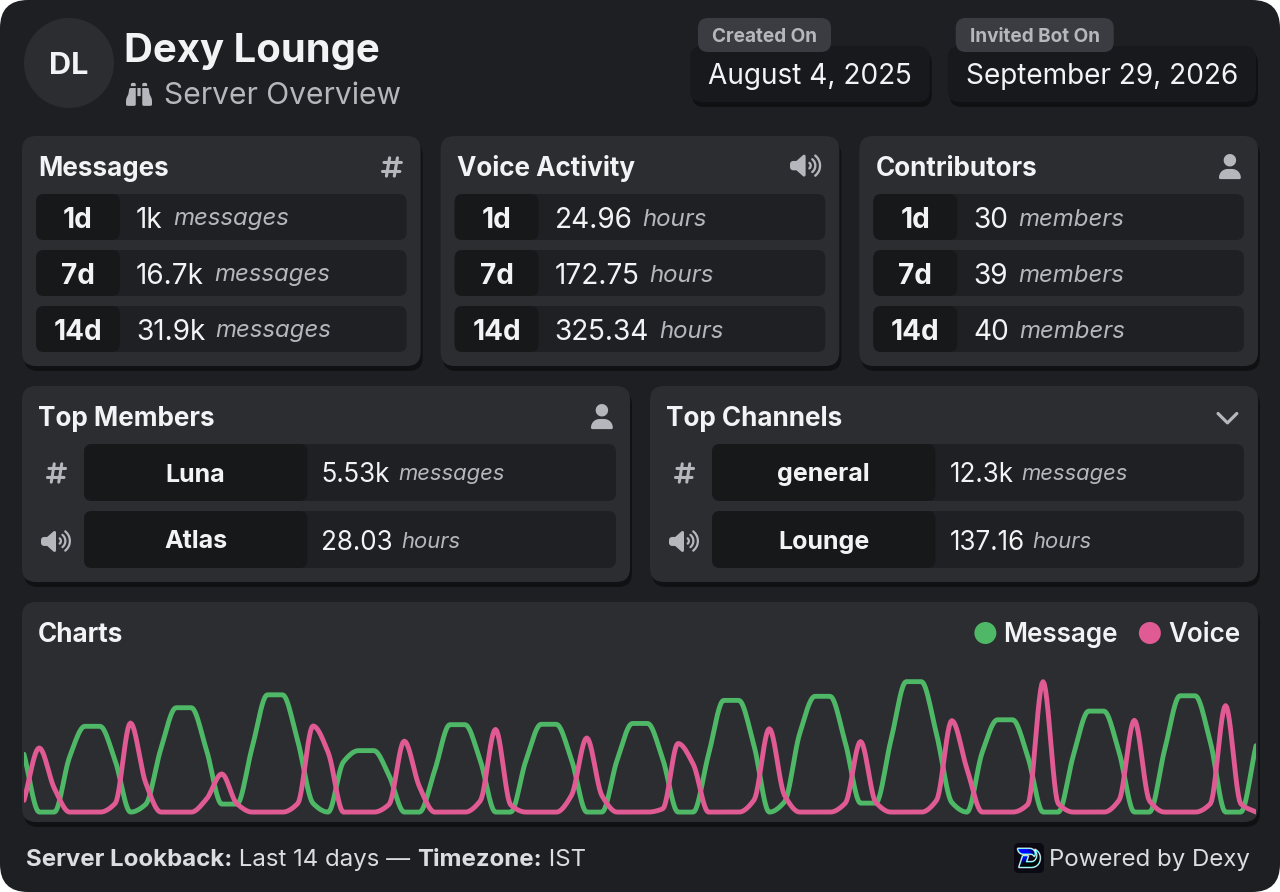


Live in Fluxer
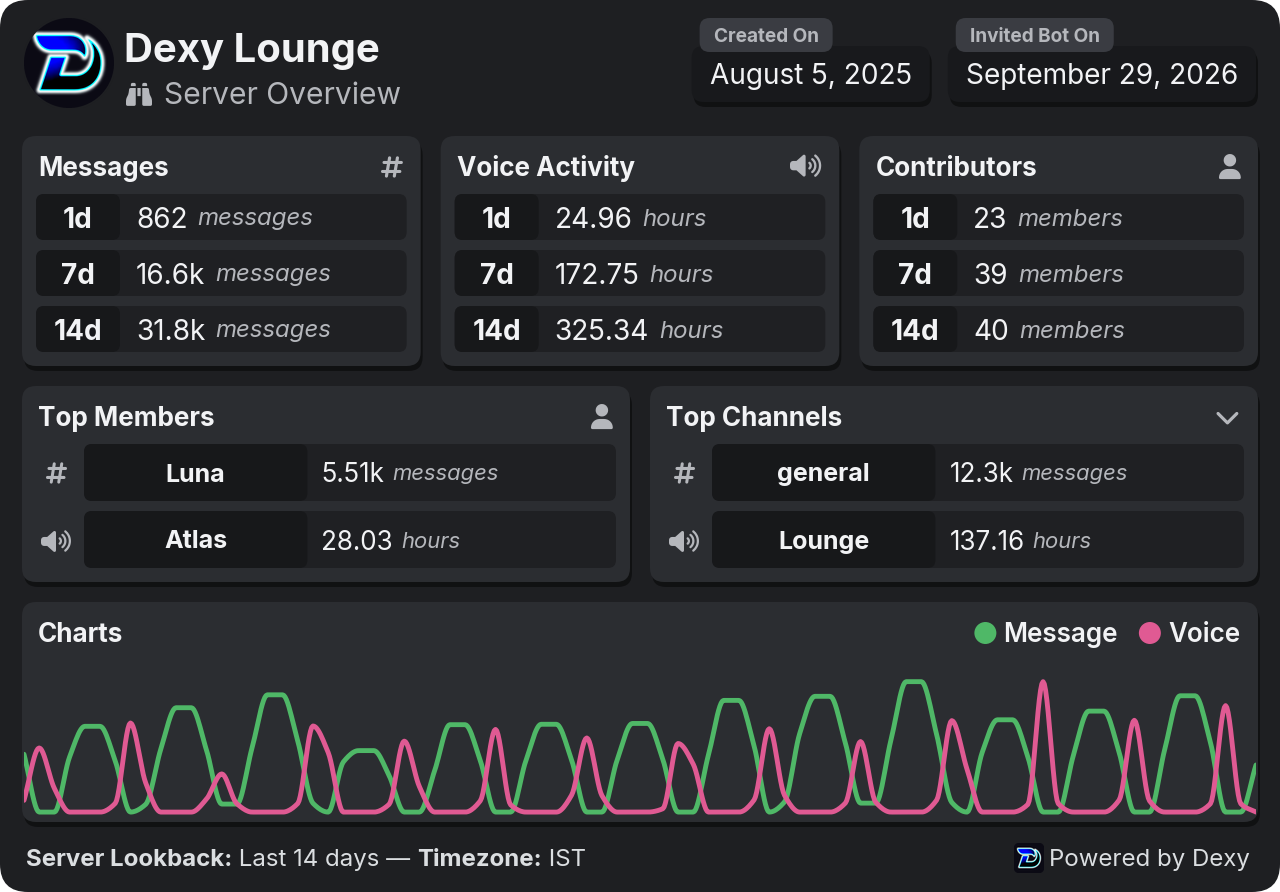
d!meshows your own card. Tryd!topfor the leaderboard andd!chartfor a chart of your member count.d!helplists every command and subcommand by module, with its usage: the same list as the command reference. React to move between pages, or with a number to open a command's page: its arguments, examples, who can use it and, for a group liked!counter, its subcommands.d!help <command>opens one command's page straight away.
Live in Discord
 Dexy help
 Stats · on
 Counters · on
 Moderation · on
 Auto-mod · on
 Auto Roles · on
 Welcome · on
 Logging · on
 Economy · on
 Settings · core
 Leveling,
  Music,
  Games,
  Giveaways
Live in Fluxer
 Links:
  · 30 commands
d!guide shows these first steps inside your server too.
Next steps#
- Stats: cards, charts, leaderboards and the filters that decide what's shown.
- Counters: channels whose names show live numbers.
d!counter setupmakes a few in one go. - Moderation: warnings, timeouts, kicks, bans and the case log.
- Auto-mod: rules that catch spam, invites, links and blocked words.
- Logging: event logs for messages, members, the server and voice.
- Welcome: join, leave and DM messages, and a welcome image you lay out yourself.
- Auto Roles: roles for new members and bots, roles given back on rejoin, and temporary roles.
- Reaction Roles: messages members react to for roles, like colours, pronouns and pings.
- The dashboard: every page, saving changes and the audit log.