
ModulesWelcome
The welcome image
Design the picture Welcome sends with your messages — start from a template, drag the avatar and text, add glass, gradients and glows, and pick or upload a background.
The welcome image is a picture Dexy draws for each member, with their avatar and name, and sends with the join message, the leave message or the DM. You design it on the dashboard, under Welcome ▸ Welcome image.
There are two images: the join image (for the join message and the DM) and the leave image (for the leave message). Each has its own design.
The boost message uses the join image too.
Lay it out step by step#
- Open Welcome ▸ Welcome image and pick Join image or Leave image at the top.
- Press Templates and pick a starting point. The gallery shows each one as Dexy draws it.
- On the card, drag the avatar or a line of text to move it. It snaps to the card's edges and middle and to the other layers, and a guide line shows what it lined up with. Its handles resize it: the avatar's corner changes its size, a text's right edge its box width and its corner its size.
- Click a layer (on the card or in Layers) to change it on the side: its text, font and colours, its fill and its effects.
- Below, pick the Background and its Background effects, and the Frame.
- Press Ask Dexy to draw it under Exact preview to see the card exactly as members will get it.
- Press Save changes. Turn on Sent with ▸ Join message if the image isn't attached yet.
Templates#
A template is a complete design: background, effects and layers. Picking one replaces the image's design; the note under the gallery (or Ctrl/⌘ Z) undoes it. Join templates suit a leave image too, and the other way round.
For joins
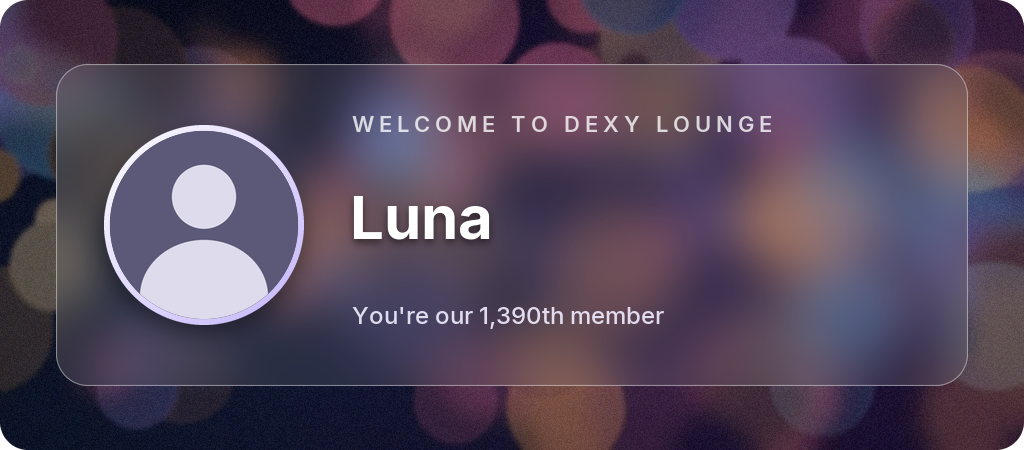
glassA frosted panel over soft city lights.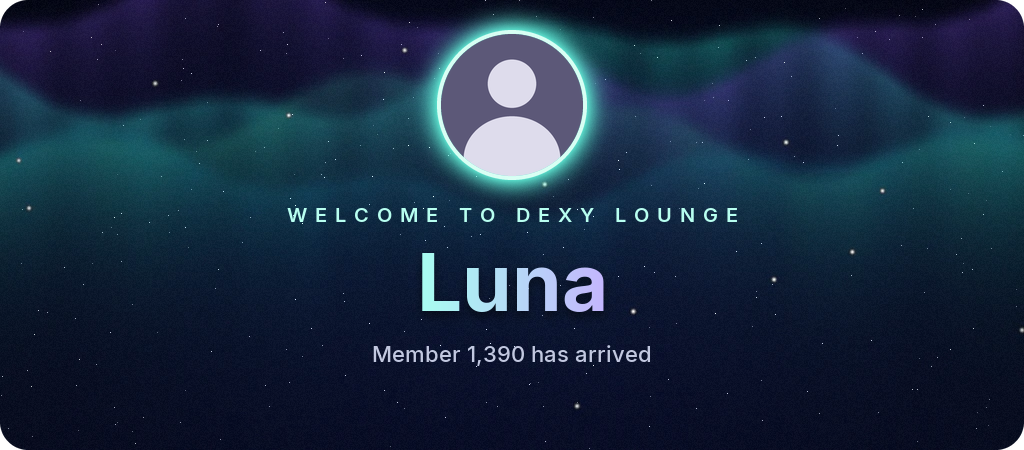
auroraNorthern lights and stars, the name in a gradient.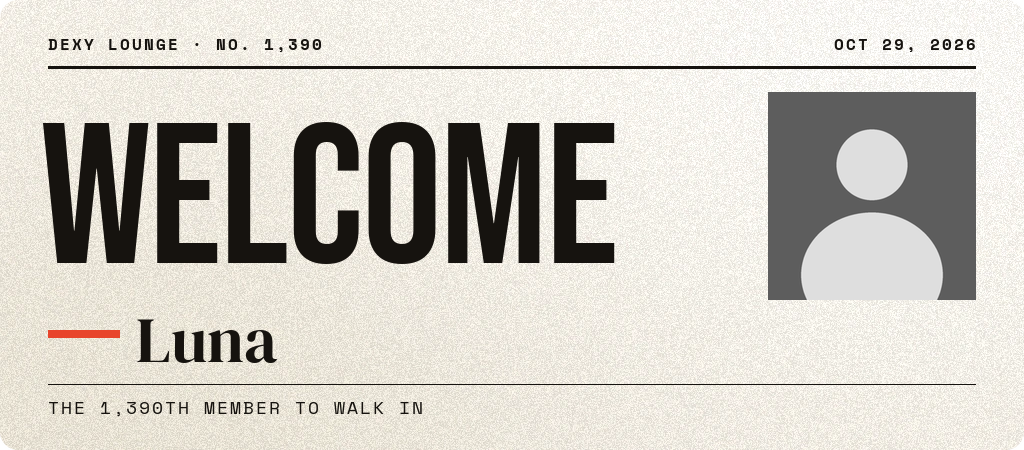
posterEditorial: huge type, rules and a mono byline.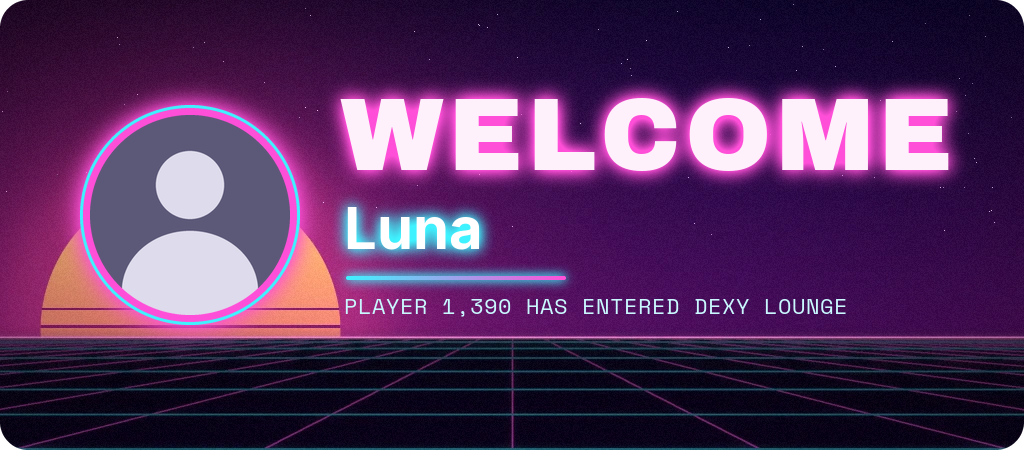
neonSynthwave grid, glowing type and a double ring.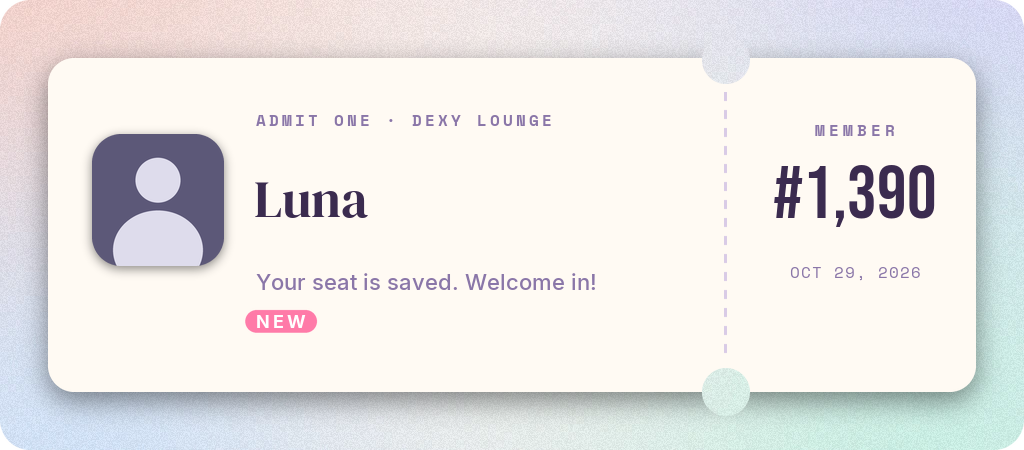
ticketA pastel admission ticket with a member-number stub.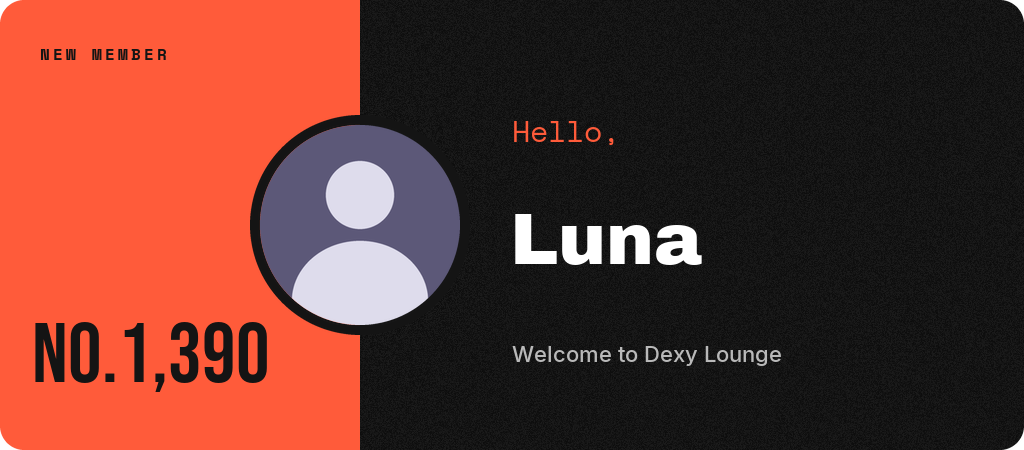
splitTwo colours down the card, the avatar on the seam.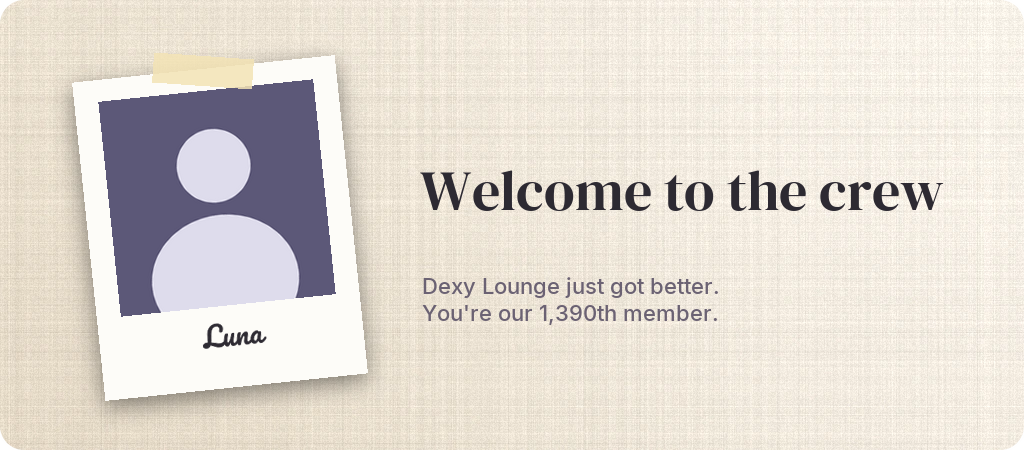
polaroidA tilted instant photo with a handwritten caption.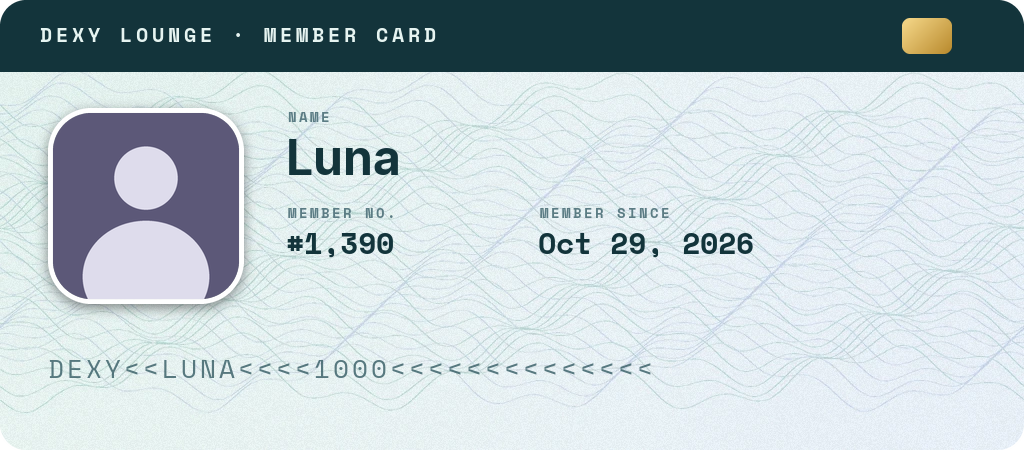
passportAn ID card: photo, name, number and the date.
confettiA party: confetti, a big hello and a member badge.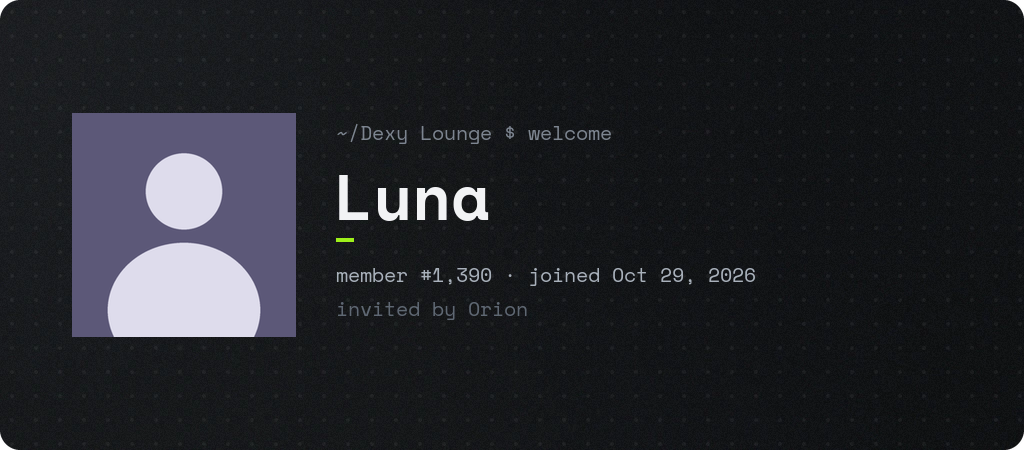
monoMonospaced and quiet, like a terminal greeting.For leaves
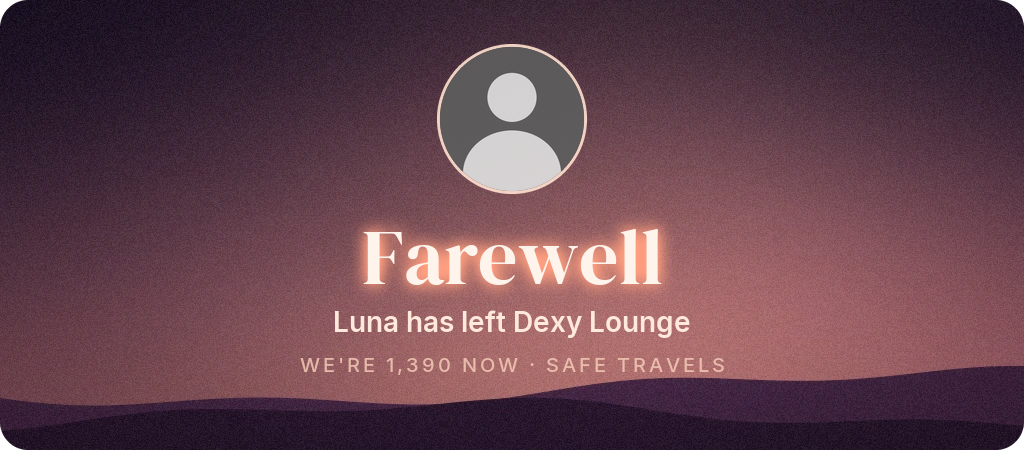
farewellDusk, a faded avatar and a quiet goodbye.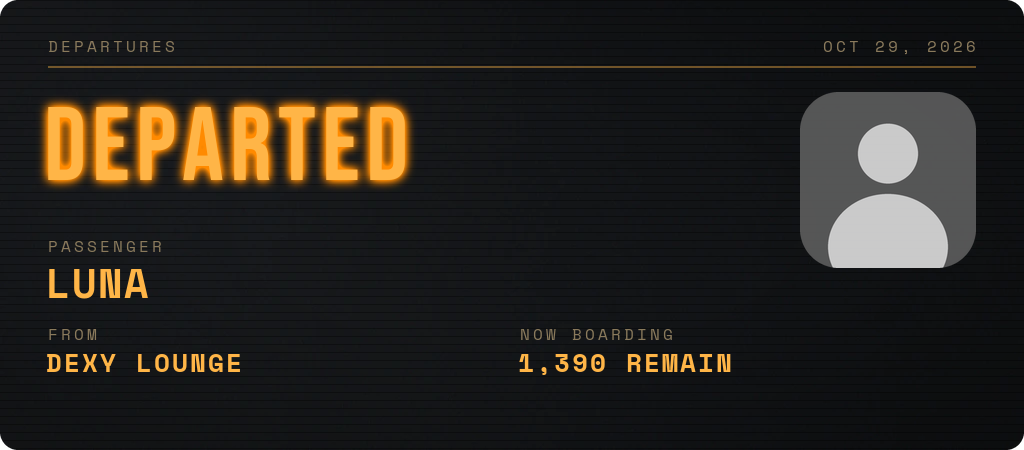
departureA departures board: they've left the building.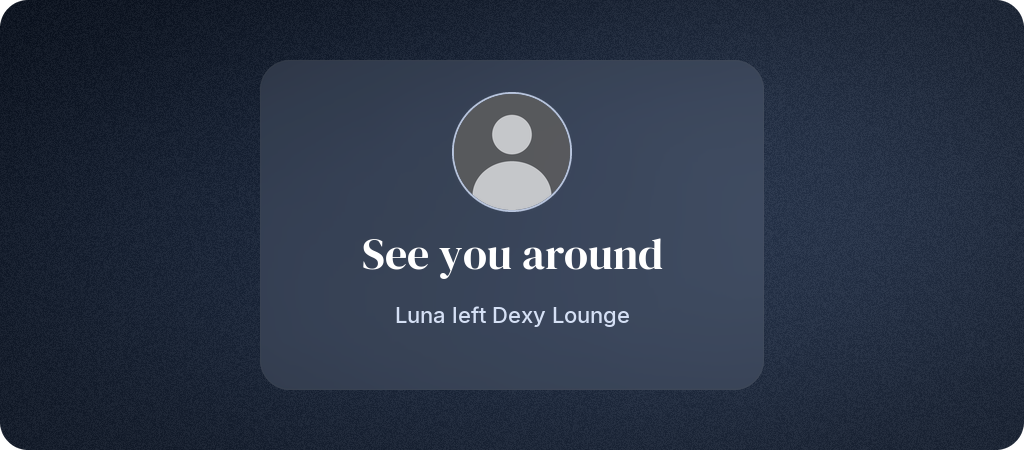
fadeCold glass and a grey avatar: see you around.Every template is made to work with any name: a short one, a 32-character one (it wraps onto a second line or shrinks to fit), names with emoji, Cyrillic or Greek letters, and members without an avatar.
The card#
The card is 1024 × 450 pixels: wide like a banner, so a name in big letters fits beside or under the avatar, and twice the size Fluxer shows it in chat, so it stays sharp. Every position on the dashboard is in those pixels, from the top-left corner.
Above the card:
- Fit shows the whole card; 100 % shows it at its real size (on a small screen, scroll sideways).
- The grid button shows lines every 32 pixels; while it shows, layers snap to it too.
- The keyboard button lists the shortcuts.
Hold Alt while dragging to place a layer without snapping.
Layers#
Layers are drawn bottom first; the top of the Layers list is in front. A card holds up to 12 layers. In the list:
- drag a layer by its grip (⋮⋮) to put it in front of or behind others, or use its arrows;
- the eye hides a layer without deleting it;
- the lock keeps a layer from being moved by accident: it can't be dragged, resized or nudged on the card until you unlock it;
- double-click a name to rename the layer (names are only for you; they're never drawn);
- the copy button duplicates a layer, just in front of it.
The buttons under the list add a Text, a Badge, a Rectangle, a Circle, a Line, a Glass panel or the Avatar.
What every layer has#
- Position & size: where its box starts, its size, and six buttons that line it up with the card's left edge, middle or right edge, top, middle or bottom.
- Rotation: up to 45° either way, about the box's middle.
- Opacity: how see-through the whole layer is, its glow and shadow included.
- Glow: a soft light around its shape, in a colour of your choice, like neon.
Avatar#
The member's avatar (one per card) as a circle, a rounded square or a square, with:
- a ring: solid, a gradient from one colour to another, or double (a thin outer ring, a gap, then an inner ring in the second colour);
- a soft shadow under it;
- black and white, a quieter look for leave images.
Members without an avatar get Fluxer's default one.
Text#
Text with placeholders, like {displayname} or Member #{membercount}.
- Fonts: Inter (four weights), Bebas Neue, Archivo Black, DM Serif Display, Space Mono (regular and bold) and Pacifico. The picker shows each in itself.
- Lines: one line, or up to two. A long text first wraps at a space (with two lines allowed), then shrinks to fit, down to half its size; if it still doesn't fit it ends with “…”.
- Letter spacing: wide-spaced capitals for small labels, or tighter headlines.
- Colour: solid, or a gradient across the text in a direction.
- Badge: a rounded pill behind the text that hugs it however long it turns out, like a “MEMBER #1,391” tag.
- Capitals, shadow and outline, as before.
Other alphabets and emoji. A letter the font doesn't have (Cyrillic in Bebas Neue, say) is drawn in Inter, which covers Latin, Cyrillic, Greek and Vietnamese. Emoji are drawn as outlines in the text's colour (Noto Emoji). Anything none of Dexy's fonts can write is left out, and a display name with nothing Dexy can write at all (all Chinese, say) shows the member's username instead. On the image, {user} reads as @name.
Shapes#
A rectangle (with corners as round as you like: a pill when they're half its height) or an ellipse:
- Fill: a colour, a gradient, none (just its border), or a cut-out, which shows the bare background through everything under it (the ticket's notches).
- Border: a line around the inside of its edge.
- Dashes: cuts it into dashes along its longer side, for a dashed divider or a perforation.
- Frosted glass: blurs what's under the shape (the background and the layers below). With a light, see-through fill and a thin border it reads as glass.
- A soft shadow under it.
Backgrounds#
- Dexy's: seventeen backgrounds made for welcome cards, all drawn by Dexy (no photos): Aurora, Nebula, Bokeh, Synthwave, Dusk, Twilight, Ocean, Ember, Forest, Midnight, Graphite, Pastel, Confetti, Blush, Linen, Guilloche and Paper.
- Colour: one plain colour.
- Gradient: two colours and a direction (0° runs left to right, 90° top to bottom).
- Your images: upload your own.
Uploading a background#
Press Your images, then Upload. A bar shows the upload's progress.
- PNG, JPEG, WebP or GIF (an animated one keeps its first frame), up to 8 MB.
- Dexy checks that it really is an image, crops it to 1024 × 450 from the middle, and keeps a clean copy: the file's metadata (camera, location and so on) isn't kept.
- A server keeps 5 uploads. Delete one with the ✕ on it; one an image uses can't be deleted until you pick another background for it.
Background effects#
These change the background only, under the layers, in this order:
- Overlay: a colour over the background (up to 90 %), so text stays readable on a busy picture, and a blur of it (up to 20 pixels).
- Tone: black and white, or duotone: the background's darks become one colour and its lights another.
- Pattern: fine dots, a grid, lines or diagonal lines, in one colour, as strong and as large as you like.
- Vignette: darker towards the corners.
- Grain: a fine film grain, so flat colours and gradients look printed.
Frame#
Rounded corners and a border around the card. Outside the corners the picture is see-through.
Colours#
Each colour has a swatch (it opens your system's colour picker) and its hex code. The palette button beside it suggests colours from the background and the colours you used last (kept in your browser).
Keyboard shortcuts#
Click or tab to a layer on the card, then:
| Keys | What they do |
|---|---|
| Arrow keys | Move the layer 1 pixel (with Shift, 10) |
| + and − | Make it bigger or smaller |
| Delete | Delete it |
| Esc | Let go of it |
| Ctrl/⌘ D | Duplicate it |
| Ctrl/⌘ ] and Ctrl/⌘ [ | Bring it forward, send it back |
| Ctrl/⌘ Z, Ctrl/⌘ Shift Z (or Ctrl/⌘ Y) | Undo, redo |
| Alt (while dragging) | Don't snap |
A locked layer ignores the keys that would move, resize or delete it.
The exact preview#
While you work, the card is drawn in your browser the way Dexy draws it: the same fonts, the same layout of each letter, the same blurs and effects. Ask Dexy to draw it sends your design, saved or not, to Dexy, which draws it exactly as members get it, with you as the new member. If you change something afterwards the preview fades until you draw it again. Dexy draws up to 30 previews a minute per server.
On a phone#
The editor works on a phone too: the card fits the screen and the layers and properties come under it. Drag with your finger; the handles and the layer grips are big enough to grab.
In chat#
Templates and backgrounds can be picked in chat; moving and styling layers is done on the dashboard. The template names are the ones under the pictures above.
d!welcome image on
d!welcome image template neon
d!welcome image template farewell leave
d!welcome image background nebula
d!welcome image background #0f172a leave
d!welcome image upload
d!welcome image preview
d!welcome image
d!welcome image on
d!welcome image template neon
d!welcome image template farewell leave
d!welcome image background nebula
d!welcome image background #0f172a leave
d!welcome image upload
d!welcome image preview
d!welcome image
welcome image background takes a preset, a colour like #1e1b4b, or the name of a picture you uploaded. welcome image upload, with a picture attached to the message (PNG, JPEG, WebP or GIF, up to 8 MB), stores it as a background (five per server) and puts it behind the image. welcome image preview draws the image about you, as it looks now.
Live in Discord

Live in Fluxer
Live in Discord
Live in Fluxer
Good to know#
- Each join draws the image once, shared by the join message and the DM. Drawing one takes Dexy well under a tenth of a second.
- When many people join at once, a channel gets at most 10 images a minute; the rest of the messages go out without one (see Busy moments).
- If Dexy can't post files in the channel (it needs Attach Files), the setup check says so.
- Designs saved before the new effects existed look exactly as they did.